
Creating or changing many profiles at once
Create profiles from a template, and edit details like a spreadsheet.
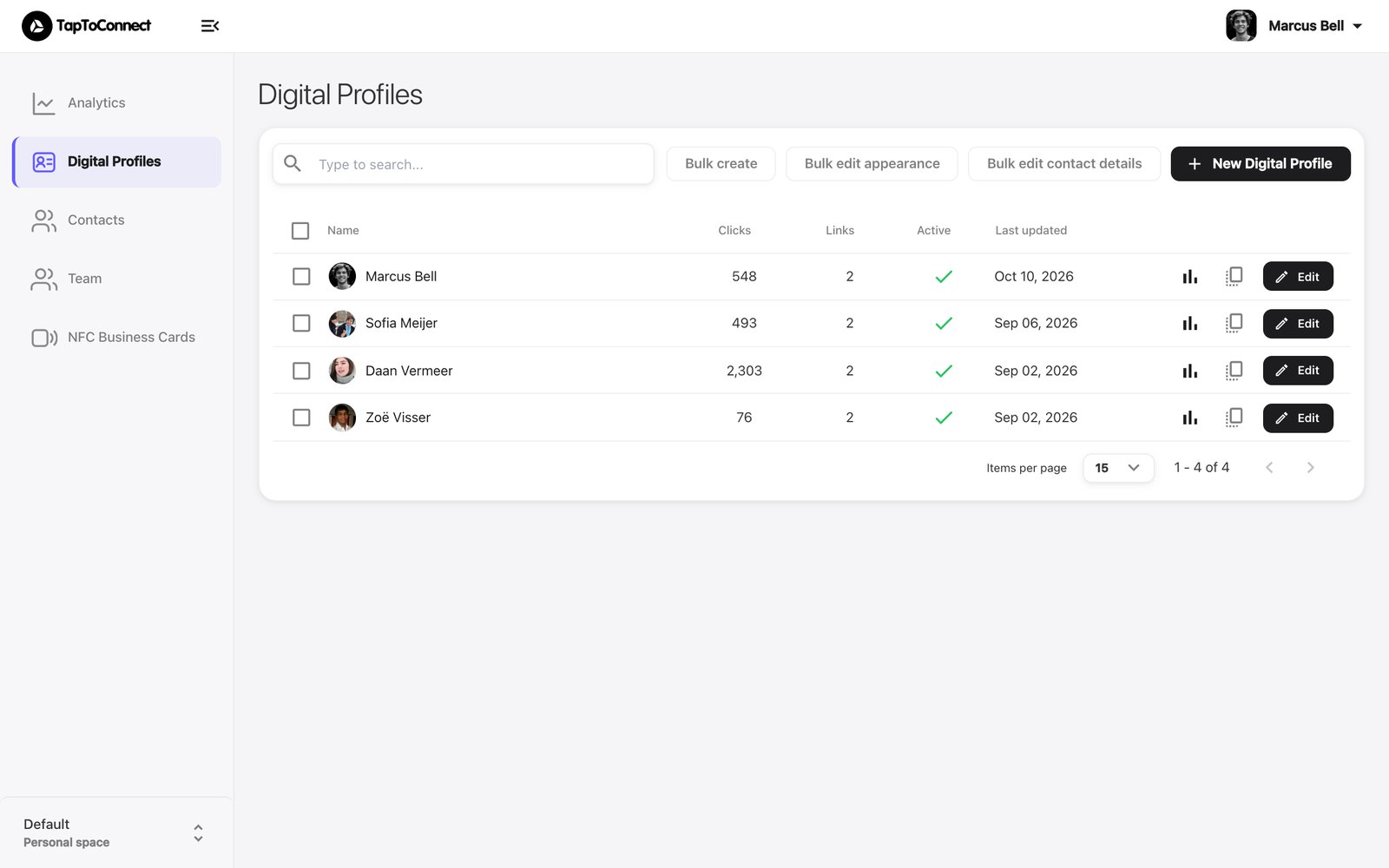
Creating profiles from a template
- Go to Digital Profiles and click Bulk create.
- Under Choose a template, pick an existing profile as the template. Its design, layout and fixed buttons are reused.
- Choose how many profiles to create.
- Fill in the details per person, or paste them from a spreadsheet.
Changing the details of all profiles
Click Bulk edit contact details. You see every profile as a row in a table, with columns for name, job title, photo, phone, email, address, buttons and more. Change the cells you want and save. Only what you change is saved.
With Bulk edit appearance you give all profiles the same look in one go.