
Editing your profile
Changes show up in the preview right away and are live immediately.
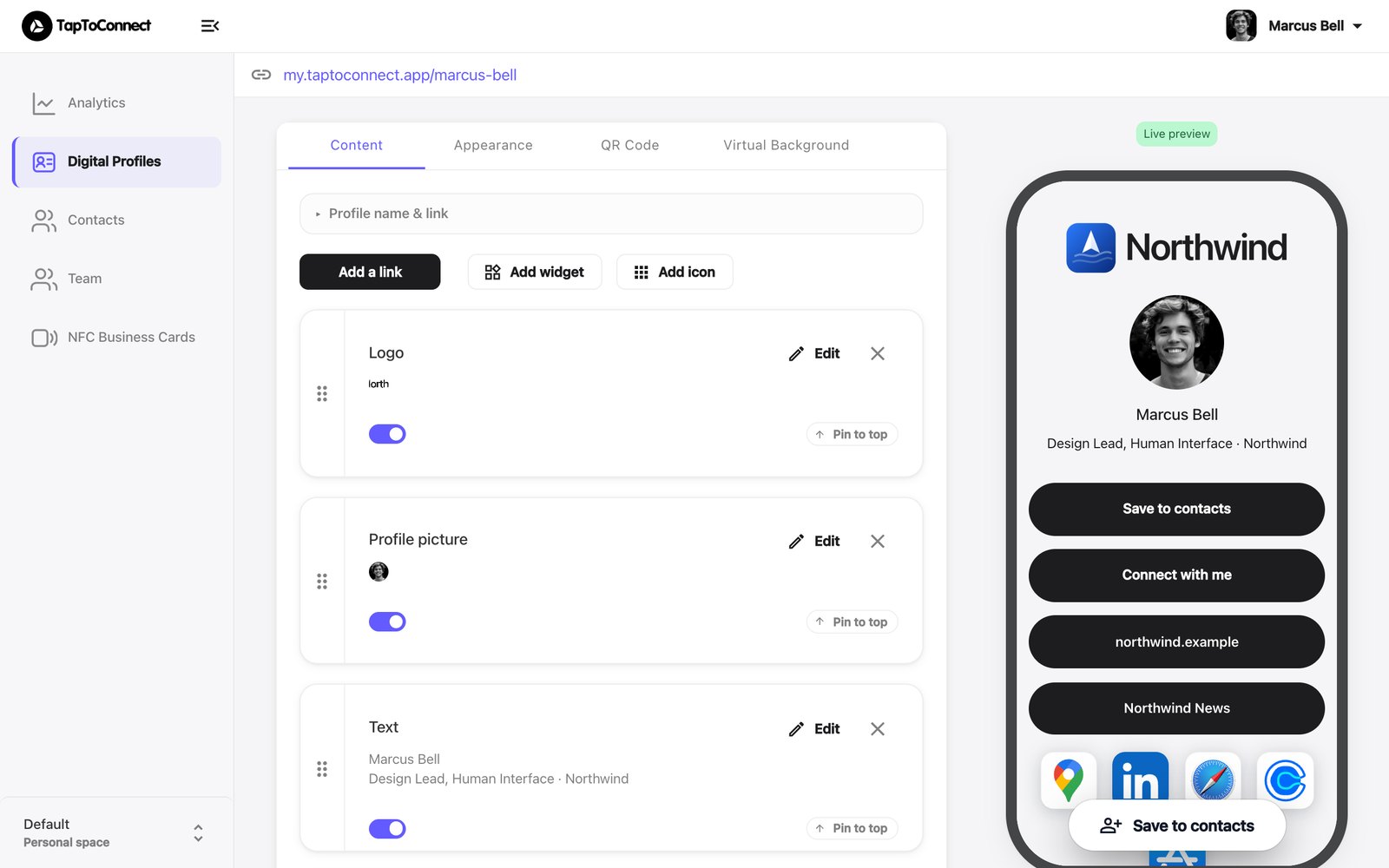
- Go to Digital Profiles and click Edit next to your profile.
- The Content tab lists all blocks of your profile. On the right, Live preview shows how it looks.
- Click Edit on a block to change it, then save.
Your changes are live immediately. You don't need to link your card again.
Managing blocks
- Order: drag a block by the dots on the left.
- Hide for now: switch off the block's toggle.
- Delete: click the cross.
- Keep at the top: click Pin to top.
Adding new things
- Add a link adds a button that goes to a website, for example your web shop or a brochure.
- Add widget adds a block such as a video or the Connect form. See Adding widgets.
- Add icon adds an app icon, for example LinkedIn or Google Maps.
Your profile's name and link
Click Profile name & link at the top to change your profile's name and the last part of its link (my.taptoconnect.app/your-name). Note: if you already shared the old link somewhere, it stops working. Your card keeps working.